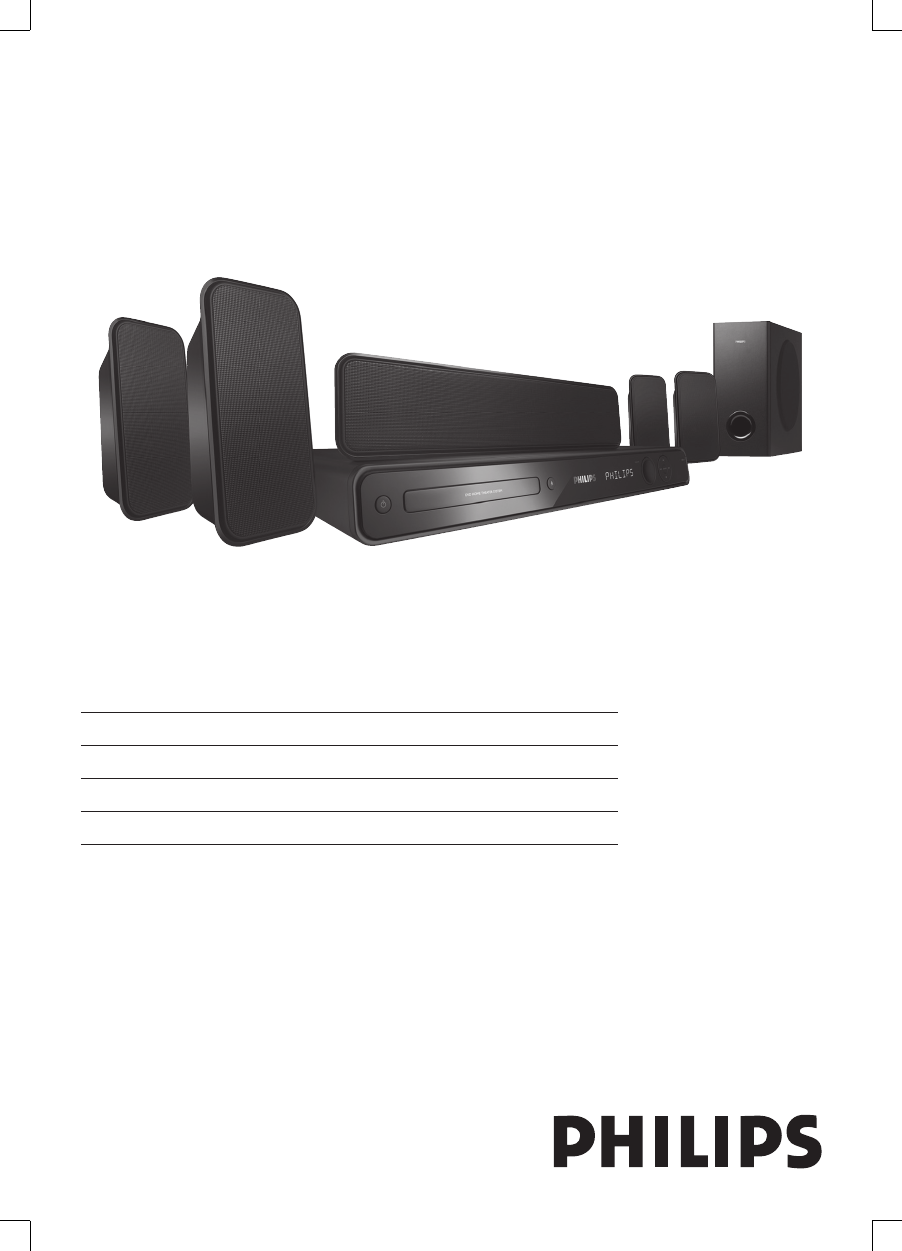
Philips HTS3569 User Manual
Browse online or download User Manual for Home Theater Systems Philips HTS3569. Philips HTS3569 User Manual
- Page / 48
- Table of contents
- TROUBLESHOOTING
- BOOKMARKS

- DVD 家庭劇院系統 1
- Sistem Teater Rumah DVD 1
- ⬉∴ᷛ䆚Battery labeling logo 2
- LASER RADIATION 3
- DO NOT VIEW DIRECTLY 3
- WITH OPTICAL INSTRUMENTS 3
- CLASS 1M LASER PRODUCT 3
- 4 EN 4
- Contents 5
- 1 Important 6
- 2 Your product 7
- Product overview 8
- EN 9 9
- Main unit 10
- 3 Connect 11
- Connect video cables 12
- B PR sockets on this 13
- S-VIDEO IN 13
- VIDEO IN 13
- 14 EN 14
- Connect radio antenna 15
- Connect other devices 15
- Connect audio from cable box/ 16
- Connect portable media player 16
- Connect to power outlet 17
- 4 Get started 18
- General Setup 19
- Video Setup 20
- EN 21 21
- EasyLink 22
- Select a play source 23
- Play from disc 24
- Play video 25
- 1 Play a title 25
- Access DVD menu 26
- Play DivX® video 28
- Control a track 28
- Play MP3/WMA music 29
- Play photos as slideshow 29
- Control photo play 30
- Play musical slideshow 30
- MP3 LINK 31
- Play from radio 32
- 1 Press RADIO 32
- 2 Press u 32
- Change tuning grid 33
- 6 Adjust sound 34
- EN 35 35
- 7 Adjust settings 36
- Audio setup 37
- Video setup 39
- Preferences 41
- Old Password 42
- New Password 42
- Confirm PWD 42
- Adjust settings 43
- 8 Additional 44
- Specifi cations 45
- 9 Troubleshooting 46
- EN 47 47
- 10 Glossary 48
Summary of Contents
HTS3565HTS3569EN DVD Home Theatre System 5ZH_CNDVD 家庭影院系统49ZH_TWDVD 家庭劇院系統93MS_MYSistem Teater Rumah DVD137Register your product and get support atwww
10 ENMain unita 2Turn on this unit or turn off to standby mode.b Disc compartmentc ç (Open/Close)Open or close the disc compartment.d Display pa
EnglishEN 11Connect3 Connect This section describes the basic connections required for this DVD Home Theatre unit before it can be used. Basic co
12 ENConnect video cablesThis section describes how to connect this DVD Home Theatre unit to your TV so to enable viewing of disc play.Select the
EnglishEN 13Connect1 Connect the component video cables (not supplied) from the Y PB PR sockets on this unit to the component video input sockets
14 ENConnect speaker cables to speakersFor model HTS3569 only. 1 Connect the speaker cables to the matching colour sockets on the speakers or sub
EnglishEN 15ConnectConnect radio antenna121 Connect the FM antenna (supplied) to the FM75Ω socket on this unit (for some models, this cable has b
16 ENConnect audio from cable box/recorder/game consoleYou can choose to connect to analogue or digital socket depending on the device capabilitie
EnglishEN 17Connect NoteTo listen to the audio output from this connection, press AUX / MP3 LINK repeatedly until ‘MP3 LINK’ is displayed on the d
18 EN4 Get started Prepare the remote control 1 Push to open the battery compartment cover.2 Insert two batteries type R03 or AAA. Match the
EnglishEN 19Get startedFind the correct viewing channel1 Press 2 to turn on the DVD Home Theatre unit.2 Press DISC to switch to disc mode3 Turn
2᳝↦᳝ᆇ⠽䋼ܗ㋴+D]DUGRXV7R[LF6XEVWDQFH䚼ӊৡ⿄1DPHRIWKH3DUWV䪙3E/HDG∲+J0HUFXU\䬝&G&DGPLXP݁Ӌ䫀&KURPLXP⒈㘨㣃3%%⒈Ѡ㣃䝮3%'(˅&apos
20 ENTurn on Progressive ScanWhen you connect a TV with the component video connection (see chapter ‘Connect video cables - Option 2: Connect to c
EnglishEN 21Get startedChange speakers settingsIdeally the distance between listening position and all the speakers should be the same. If not, c
22 ENActivate EasyLink controlThis feature is only applicable if this unit is connected to HDMI CEC compliant TV/device. It enables all the linke
EnglishEN 23Get started8 Select an input to map (e.g. AUX1, AUX2), then press B. 9 Select the correct device that connected to this audio input,
24 EN5 PlayPlay from discPlayable discsDVD VideoRegion 3 (Asia Pacifi c, Taiwan, Korea)Region 4 (Australia, New Zealand)••DVD±RW (DVD Rewritable)DV
EnglishEN 25PlayPlay video NoteFor video disc, playback always resumes from the point where it was last stopped. To start playback from the beginn
26 ENAccess DVD menu1 Press DISC to access disc main menu.2 Select a play option, then press OK.In some menus, press number buttons to input you
EnglishEN 27PlaySync audio output with video playIf the video play is slower than the audio output (sound does not match with the pictures), you c
28 ENPlay DivX® video DivX video is a digital media format that retains high quality despite a high rate of compression. This unit is DivX® Certi
EnglishEN 29PlayPlay MP3/WMA music MP3/WMA is a type of highly compressed audio fi le (fi les with .mp3 or .wma extensions).1 Insert a disc or USB
3Manufactured under license from Dolby Laboratories. Dolby, Pro Logic and the double-D symbol are trademarks of Dolby Laboratories.Manufactured under
30 EN NoteIt may require longer time to display the disc content on the TV due to the large number of songs/photos compiled onto one disc.If the J
EnglishEN 31PlayPlay from USB device This unit can only play/view MP3, WMA, DivX (Ultra) or JPEG fi les that are stored on such devices.1 Connect
32 ENPlay from radio Check if the FM antenna has been connected to this DVD Home Theatre unit. If not, connect the supplied FM antenna to the FM
EnglishEN 33PlayReinstall all the radio stations1 Press RADIO.2 Press and hold PROGRAM until ‘START’ is displayed. All previously stored radio
34 EN6 Adjust soundControl the volume1 Press VOL +- to increase or decrease the volume level.To mute the volume, press H.To restore the volume, pr
EnglishEN 35Adjust soundAdjust microphone volume level1 Connect a microphone (not supplied) to MIC socket on this unit. 2 Turn on the micropho
36 EN7 Adjust settingsThis section describes the various setting options of this unit. Symbol Options[ General Setup ][ Audio Setup ][ Video Setu
EnglishEN 37Adjust settings[ Sleep ]Switch to standby automatically after the preset time.[ Off ] – disable sleep mode.[ 15, 30, 45, 60 mins ] – s
38 EN[ Speakers Volume ]When all the speakers are not placed in an equal distance from the listening position, change the volume level of the spea
EnglishEN 39Adjust settingsVideo setup1 Press OPTIONS. [ General Setup ] menu is displayed.2 Press V to select [ Video Setup ], then press B.
4 EN1_hts3565-69_98_eng5_Final808.in4 41_hts3565-69_98_eng5_Final808.in4 4 2008-02-19 3:42:02 PM2008-02-19 3:42:02 PM
40 EN[ Picture Setting ]Select a predefi ned set of picture colour settings or customise your personal setting.[ Standard ] – original colour setti
EnglishEN 41Adjust settings[ System Audio Control ]Enable auto switching of audio input to the active device and output the sound from its speaker
42 EN[ Audio ]Select the default audio language for DVDs.[ Subtitle ]Select the default subtitle language for DVDs.[ Disc Menu ]Select the menu la
EnglishEN 43Adjust settings[ DivX Subtitle ] Select a character set that supports the DivX subtitle. [ Standard ] English, Irish, Danish, Estonia
44 EN8 Additional informationUpgrade softwarePhilips provides software upgrades to ensure that this unit is compatible with the newest formats. T
EnglishEN 45Additional informationSpecifi cations NoteSpecifi cation and design are subject to change without notice.•Accessories suppliedQuick Star
46 EN9 Troubleshooting Main unitThe buttons on this unit do not work.Disconnect this unit from the power outlet for a few minutes, then connect
EnglishEN 47TroubleshootingSoundNo sound. Ensure that the audio cables are connected and press the correct input source (for example, AUX /MP3 LIN
48 EN10 GlossaryAspect ratioAspect ratio refers to the length to height ratio of TV screens. The ratio of a standard TV is 4:3, while the ratio o
EnglishEN 5ContentsContents1 Important 6Safety and important notice 62 Your product 7Features highlight 7Product overview 83 Connect 11Pla
6 ENRecycle notice This electronic equipment contains a large number of materials that can be recycled or reused if disassembled by a specialised
EnglishEN 7Your product2 Your productCongratulations on your purchase, and welcome to Philips! To fully benefi t from the support that Philips off
8 ENProduct overviewRemote control2021222319181713141516121181234567910a 2Turn on this unit or turn off to standby mode.b Z (Open/Close)Open or
EnglishEN 9Your productk Source buttonsDISC: switch to DISC mode.USB: switch to USB mode.RADIO: switch to FM band.AUX /MP3 LINK: switch to AUX1, A
Related products and manuals for Home Theater Systems Philips HTS3569
 (22 pages)
 (17 pages)
© 2020, manymanuals.com. All rights reserved. | 0.051 s |
 Manymanuals.com
 Manymanuals.de
 Manymanuals.fr
 Manymanuals.it
 Manymanuals.pl
 Manymanuals.cz
 Manymanuals.es
 Manymanuals-pt.com
Comments to this Manuals